Paramétrage de la connexion GPRS carte SIM 2G 3G 4G
Activez la connectivité mobile sur votre imprimante Expedy pour envoyer des impressions depuis n'importe où, sans Wi-Fi et sans Ethernet. Avec une carte SIM installée, votre imprimante reste connectée via le réseau cellulaire, ce qui est idéal pour les installations mobiles, les boutiques éphémères, les flottes de livraison ou tout emplacement dépourvu de connexion Internet fixe.
ℹ️ Le modem GPRS de l'imprimante est compatible avec tous les opérateurs utilisant les fréquences suivantes : 900 / 1800 / 850 / 1900 MHz
⚠️ Nous recommandons de désactiver le Wi-Fi (réglage NONE) avant de tester la connexion 3G/4G, afin d'éviter tout conflit. Voir paramétrage Wi-Fi.
Insérer la carte SIM
Imprimante cloud 58 mm
Imprimante cloud 80 mm
Carte SIM et APN
La plupart des cartes SIM se connectent automatiquement. Toutefois, selon votre opérateur mobile, vous devrez peut-être configurer manuellement l'APN pour activer les données mobiles sur l'imprimante.
Votre APN se trouve généralement dans la documentation de votre opérateur ou sur son portail de support client.
Configurer l'APN (API distante)
Envoyez la commande suivante depuis la console Expedy, dans Printers -> Select printer, ou via l'API :
<SETAPN>your_apn</SETAPN>
Consultez la documentation de la balise
<SETAPN>pour plus de détails.
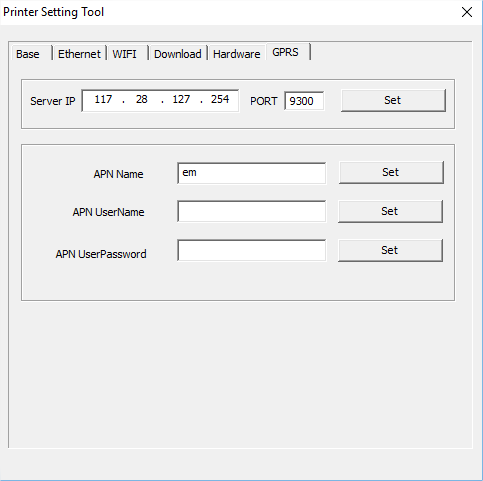
Configurer l'APN (logiciel Windows)
- Téléchargez et installez le logiciel PrinterSetting (voir le guide d'installation)
- Rendez-vous dans la section GPRS
- Dans le champ APN Name, saisissez l'APN fourni par l'opérateur de votre carte SIM
- Cliquez sur SET pour appliquer
La connexion ne fonctionne pas ? (voyant rouge clignotant)
Si la connexion GPRS échoue et que le voyant clignote une fois en rouge, vérifiez les points suivants :
- Vérifiez que l'APN est correctement configuré pour votre opérateur
- Vérifiez votre configuration du serveur SNTP, nous recommandons d'utiliser time.google.com
- Toujours rien ? Contactez notre équipe support