Einen Belegdrucker mit HubRise verbinden
Verbinden Sie einen einzigen Bondrucker auf einmal mit all Ihren Online-Verkaufskanälen, E-Commerce-Shops und Lieferplattformen inbegriffen, mit ExpedyPRINT und HubRise.
Bestellungen aus jeder angebundenen Quelle werden automatisch als einheitliche Belege gedruckt:
- Onlineshops (WooCommerce, Shopify, PrestaShop...)
- Lieferplattformen (Uber Eats, Just Eat, Deliveroo...)
Kompatible Drucker
- Expedy Cloud Print-Drucker:
PP-58EWG,PP-80EWG, XPDY80EWBG - Cloud Print Box USB-Adapter, kompatibel mit jedem ESC/POS- oder ESC/P-Drucker (Epson, Star Micronics, Munbyn, Citizen...)
Voraussetzungen
- Ein Expedy-Konto mit einem aktiven Drucker. Noch nicht angelegt? Folgen Sie der Anleitung zu Ihrem Gerät: Expedy XPDY80, HSPOS, Star Micronics oder Raspberry Pi
- Ein HubRise-Konto, erforderlich, um Bestellungen der Lieferplattformen zusammenzuführen. Legen Sie es an, bevor Sie fortfahren.
Je nach Konnektor oder Kassensoftware kann diese Verbindung von Ihrem Partner eingerichtet werden. Klären Sie das vorab.
HubRise mit Ihrem Drucker verbinden
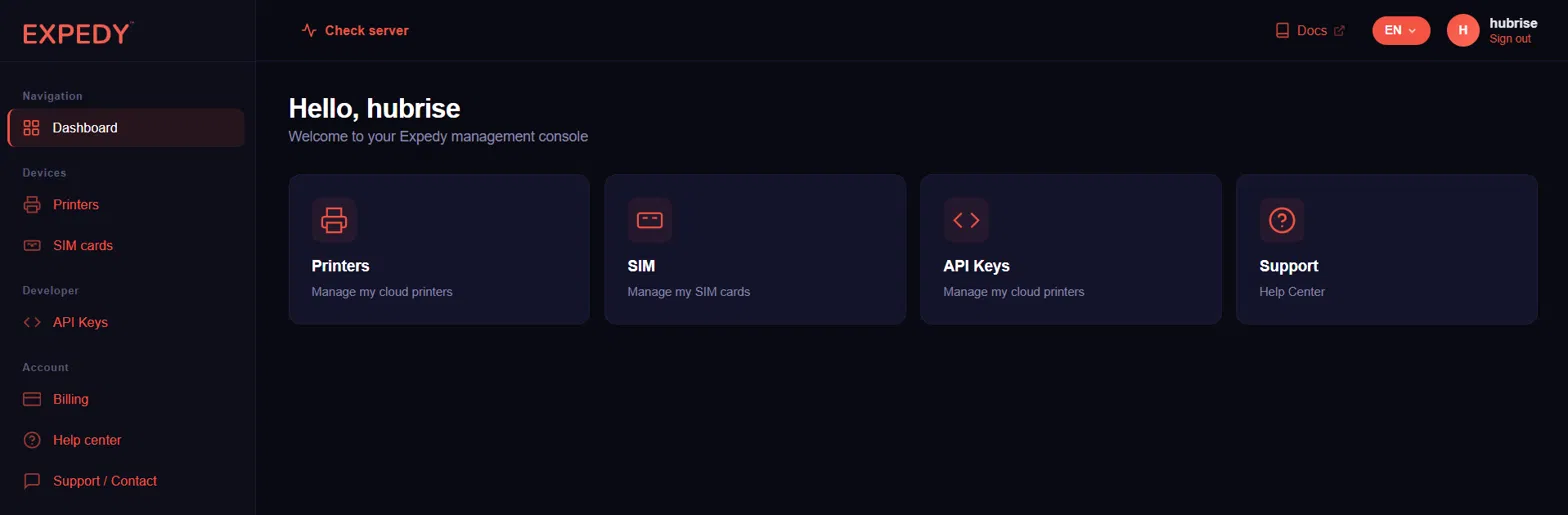
Schritt 1, In der Expedy-Konsole anmelden
Melden Sie sich unter https://www.expedy.fr/console/v3/ an
Das Dashboard gibt Ihnen Zugriff auf Ihre Drucker, Ihre SIM-Karten, Ihre API-Schlüssel und das Hilfezentrum.
Schritt 2, Ihre Drucker öffnen
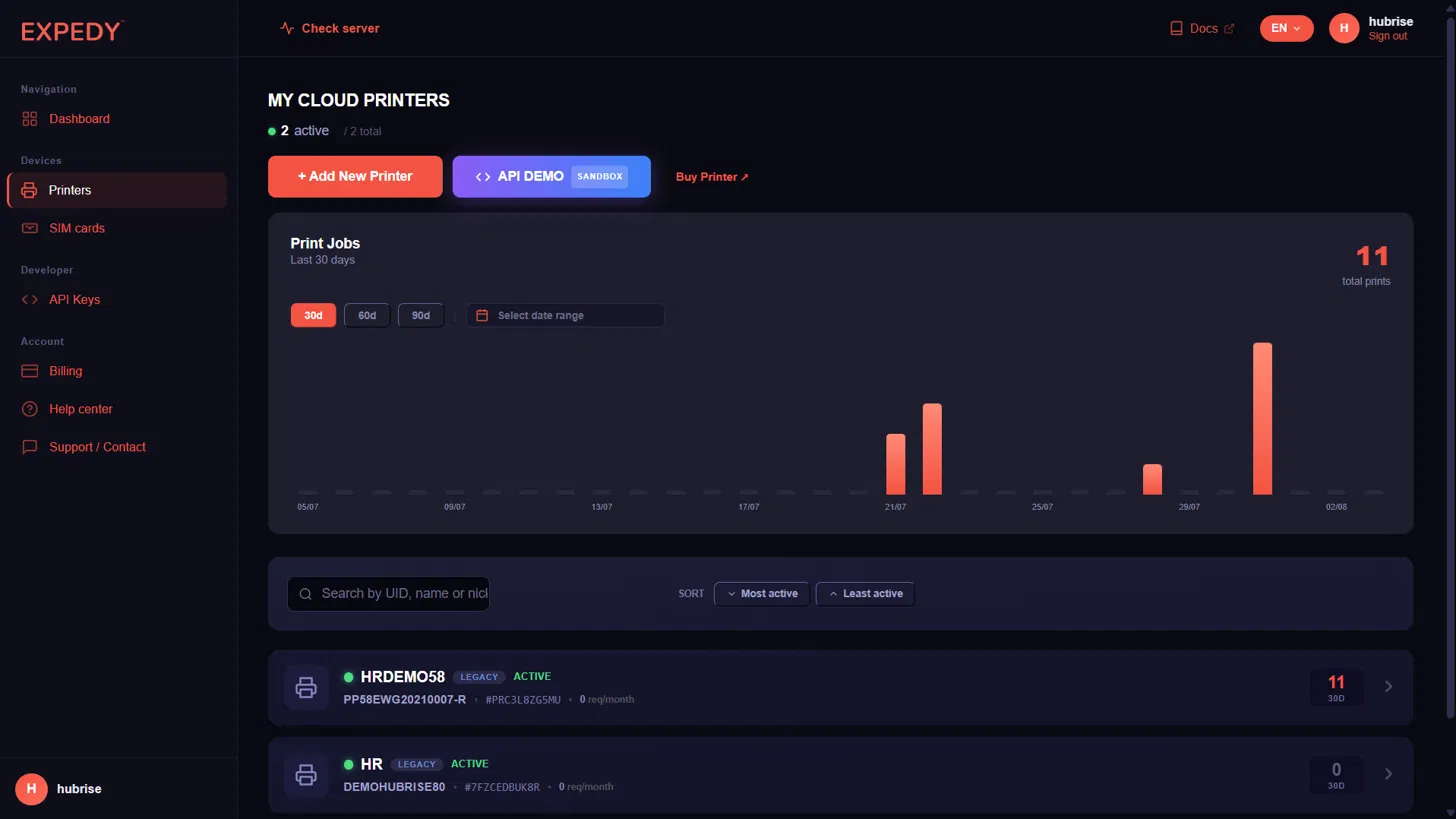
Klicken Sie im linken Menü unter Geräte auf Drucker oder gehen Sie direkt zu https://www.expedy.fr/console/v3/printers
Diese Seite listet alle Ihre Cloud-Drucker mit UID, Seriennummer und Druckvolumen der letzten 30 Tage auf.
Schritt 3, Den zu verbindenden Drucker auswählen
Klicken Sie auf den Drucker, den Sie mit HubRise verknüpfen möchten, und öffnen Sie den Reiter Verbindungen & Plugins.
Im Abschnitt HubRise steht der Status Nicht verbunden. Klicken Sie auf HubRise verbinden.

Schritt 4, Bei HubRise anmelden
Sie werden zur HubRise-Anmeldeseite weitergeleitet. Geben Sie E-Mail-Adresse und Passwort Ihres HubRise-Kontos ein und klicken Sie auf Anmelden.
Schritt 5, Verbindung autorisieren und Standort wählen
HubRise bittet Sie, EXPEDY PRINT den Zugriff auf einen Ihrer Standorte zu erlauben.
Wählen Sie in der Dropdown-Liste den Standort aus, den Sie diesem Drucker zuordnen möchten, und klicken Sie auf Erlauben.
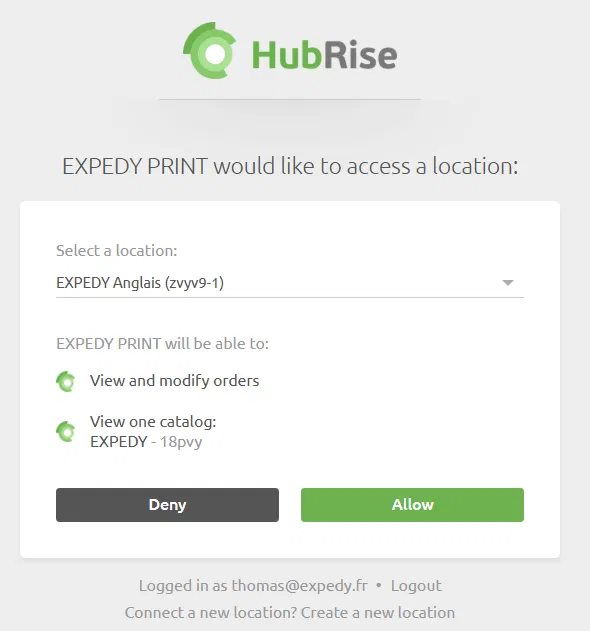
Ein Drucker ist mit genau einem HubRise-Standort verknüpft. Für mehrere Standorte wiederholen Sie den Vorgang mit einem weiteren Drucker.
Schritt 6, Zurück zur Expedy-Konsole
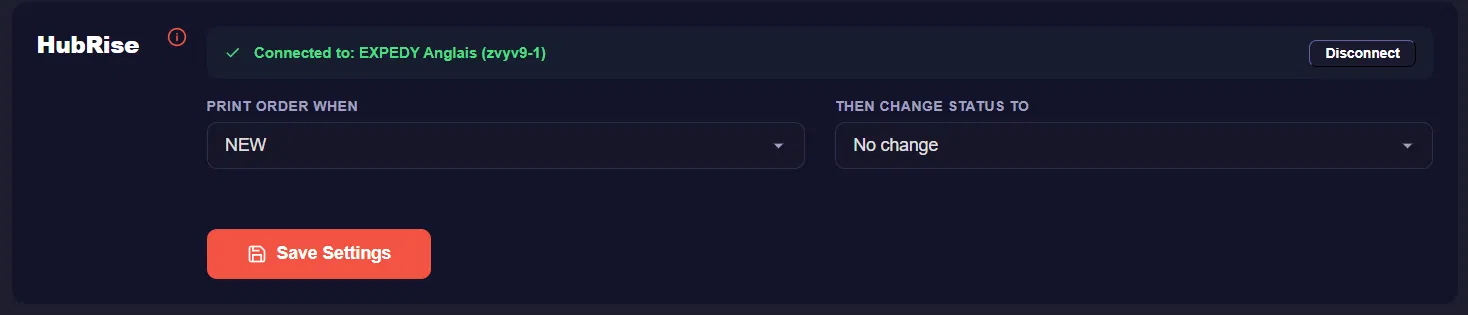
Sie werden automatisch zu Ihrer Konsole zurückgeleitet. Der HubRise-Abschnitt zeigt nun Verbunden mit, gefolgt von Name und ID Ihres Standorts sowie den Auslöser-Einstellungen.
Die Verbindung ist aktiv. Sie können sie jederzeit über die Schaltfläche Trennen aufheben.
Auslöser-Einstellungen
Zwei Dropdown-Listen legen fest, wann ein Beleg gedruckt wird und was danach mit der Bestellung geschieht.
Bestellung drucken wenn, der Bestellstatus, der den Druck auslöst: NEW, RECEIVED oder ACCEPTED.
Dann Status ändern auf, die automatische Statusaktualisierung nach dem Druck: No change, Mark as received oder Mark as accepted.
Klicken Sie stets auf Speichern, um Ihre Änderungen zu bestätigen.
Kombinationen
| Drucken bei | Danach Status ändern auf | Ergebnis |
|---|---|---|
| NEW | No change | Druckt alle neuen Bestellungen. Status bleibt in HubRise und auf der Ursprungsplattform unverändert. |
| NEW | Mark as received | Druckt alle neuen Bestellungen und setzt den Status auf empfangen. |
| NEW | Mark as accepted | Druckt alle neuen Bestellungen und setzt den Status auf angenommen. |
| RECEIVED | No change | Druckt empfangene Bestellungen. Status bleibt unverändert. |
| RECEIVED | Mark as accepted | Druckt empfangene Bestellungen und markiert sie als angenommen. |
| ACCEPTED | No change | Druckt nur Bestellungen, die Sie bereits manuell angenommen haben. Abgelehnte oder offene Bestellungen werden nicht gedruckt. |
Wählen Sie NEW mit Mark as accepted für einen vollautomatischen Ablauf, bei dem jede eingehende Bestellung ohne manuelles Zutun gedruckt und bestätigt wird. Wählen Sie ACCEPTED mit No change, wenn Sie jede Bestellung prüfen möchten, bevor sie in die Küche geht.
Belege anpassen
Weiterhin auf der Druckerseite steuert der Bereich Druckereinstellungen das Layout der Belege, die aus HubRise- und Shopify-Bestellungen gedruckt werden.
Belegkopf
| Feld | Beschreibung |
|---|---|
| Time zone | Legt die auf dem Beleg gedruckte Ortszeit fest. Wählen Sie Ihre Zeitzone, damit die Zeitstempel stimmen. |
| Logo URL | Direktlink zu Ihrem Logo, maximal 603 px breit. Leer lassen, um kein Logo zu drucken. |
| Company name (header) | Handelsname, in großen Zeichen oben auf dem Beleg gedruckt. |
Belegfuß
Der Fuß trägt Ihre rechtlichen Angaben und Kontaktdaten, gedruckt am Ende jedes Belegs:
- Company und Registration number (Handelsregister / USt-IdNr.)
- Address line 1, Address line 2, Zipcode, City, Country
- Phone und Email
Diese Felder auszufüllen macht aus dem Bestellbeleg einen rechtskonformen Kundenbeleg, nützlich für Click and Collect und für Lieferbestellungen, die dem Kunden übergeben werden.
Erweiterte Optionen
Number of copies, die meistgewünschte Einstellung. Legen Sie fest, wie viele identische Belege je Bestellung gedruckt werden:
- 2 Exemplare, eines für die Küche und eines für die Theke oder die Liefertüte
- 3 Exemplare, Küche, Bar und Packplatz
Jedes Exemplar wird in einem Durchgang gedruckt, kein manueller Nachdruck nötig.
Receipt template, der Detailgrad des Belegs. Full details druckt den vollständigen Beleg mit Artikeln, Optionen, Preisen, Kundendaten und Summen; kürzere Vorlagen ergeben einen kompakten Produktionsbeleg.
Tandem printer (copy to another printer), geben Sie die UID eines zweiten Expedy-Druckers ein, damit dieser eine exakte Kopie jedes Belegs erhält. Ideal, um die Last zwischen Küche und Theke oder zwischen zwei Etagen desselben Standorts zu verteilen, ohne eine zweite HubRise-Verbindung anzulegen.
Klicken Sie auf Speichern, um Ihr Layout zu übernehmen.
Ihre Einrichtung testen
- Geben Sie eine Testbestellung auf einer der mit Ihrem HubRise-Standort verbundenen Plattformen auf
- Prüfen Sie, ob der Beleg innerhalb weniger Sekunden aus dem Drucker kommt
- Prüfen Sie in HubRise, ob der Bestellstatus der in Dann Status ändern auf gewählten Option entspricht
Wird nichts gedruckt, prüfen Sie, ob der Drucker eingeschaltet und in der Konsole aktiv ist und ob der bei der Autorisierung gewählte Standort auch der ist, der die Bestellungen empfängt.
Brauchen Sie Hilfe? Support-Ticket eröffnen