Bild und Logo
Verleihen Sie Ihren Belegen ein professionelles Aussehen, indem Sie Ihr Firmenlogo, ein Produktbild oder ein beliebiges individuelles Motiv hinzufügen — geben Sie einfach eine URL an. Sie können sogar mehrere Bilder auf denselben Beleg drucken, Ihr Logo dynamisch austauschen oder ein Werbebanner und einen Gutscheincode anzeigen, die sich mit jeder Bestellung ändern.
<IMG>https://your-domain.com/logo.png</IMG>
⚠️ HTTP-URLs werden nicht akzeptiert. Das Bild muss über SSL (
https://) bereitgestellt werden.
Bildanforderungen
| Eigenschaft | Akzeptierte Werte |
|---|---|
| Format | .JPG .GIF .PNG |
| Auflösung | 72 dpi |
| Farbmodus | RGB |
| Farben | Einfaches Schwarz auf weißem Hintergrund |
| Transparenz (Alpha) | ❌ Nicht unterstützt |
| Empfohlene Dateigröße | 5 KB – 15 KB |
Maße nach Papierbreite
| Papierbreite | Bildbreite |
|---|---|
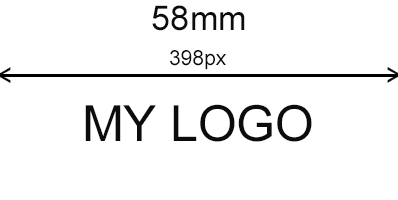
| 58 mm | 398 px |
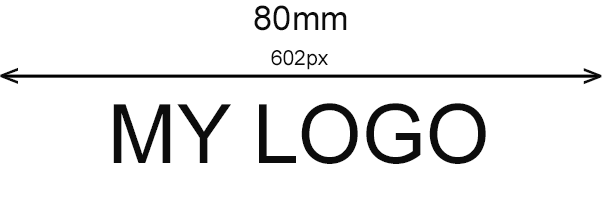
| 80 mm | 602 px |
| 104 mm | 1002 px |
⚠️ Einige Bildtypen werden nicht von allen ESC/POS-Druckermodellen unterstützt und können die gesamte Druckanfrage blockieren. Testen Sie immer mit und ohne Bild, bevor Sie in die Produktion gehen.
Grafikmodus — 58/80-mm-Thermodrucker
Wenn Sie die Cloud Print Box verwenden, konfigurieren Sie den Bilddruckmodus in der Konsole unter Printers → Select printer.
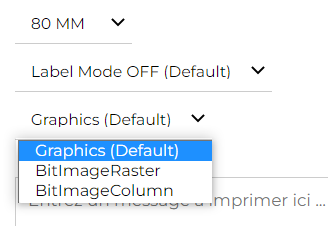
| Modus | Hinweise |
|---|---|
Graphics |
✅ Standard — funktioniert für die meisten Drucker |
BitImageRaster |
Verwenden, wenn Graphics ein falsches Ergebnis liefert |
BitImageColumn |
Alternative Rückfalloption für ältere Modelle |
Beispiel einer Druckanfrage
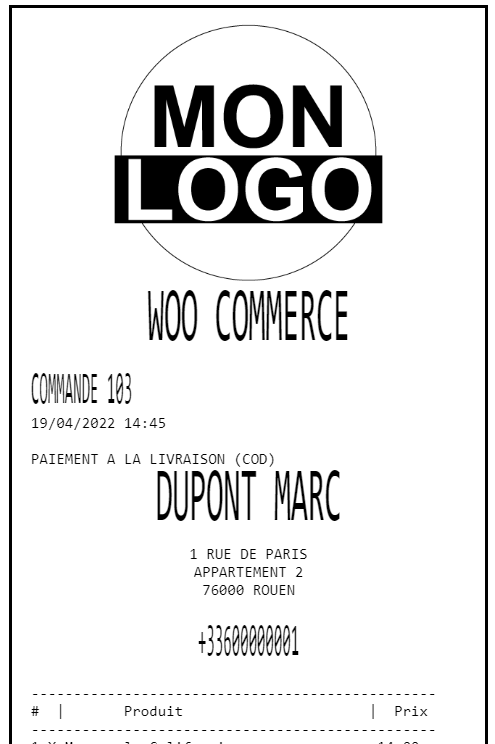
Ein Bild zentrieren
Das <IMG>-Tag wendet keine Textausrichtung an — die Zentrierung muss direkt in die Bilddatei selbst eingebaut werden.
Lassen Sie auf beiden Seiten Ihres Logos oder Motivs gleich große weiße Ränder, passend zur Zielpapierbreite dimensioniert.
Checkliste vor dem Druck
- Das Bild wird über HTTPS bereitgestellt
- Das Format ist
.JPG,.GIFoder.PNG - Die Breite entspricht der Zielpapiergröße (398 / 602 / 1002 px)
- Die Farben sind einfaches Schwarz auf Weiß — ohne Transparenz
- Die Dateigröße liegt zwischen 5 KB und 15 KB
- Der Grafikmodus ist in der Konsole korrekt eingestellt (nur Cloud-Print-Box-Nutzer)
- Vor dem Produktiveinsatz auf dem Zieldruckermodell getestet